Why Copied Text from a Scanned PDF Comes Out in the Wrong Order
Text copied from a scanned PDF can come out in the wrong order when the text output or selection does not follow the page's intended sequence. The words may be recognised correctly while lines from neighbouring columns become mixed. Searching successfully for a word does not test whether a whole passage will copy coherently.
For a team reusing paragraphs from old reports, this is worth describing precisely before ordering more OCR. Start with one affected page, keep the source identifiable and compare what is visible with what actually pastes into your working document.
Identify which problem you have
Several different symptoms can look like “bad OCR”. Separating them helps a provider assess the right work.
| What happens | What to investigate |
|---|---|
| You can select only a page image | Whether the file has usable recognised text |
| Words contain incorrect letters or digits | Recognition errors and the clarity of the source image |
| Correct words jump between columns or interrupt a paragraph | Text sequence, page layout and the selected area |
| Words stay in order but fonts or line breaks look awkward | The destination's formatting and the required editing output |
Adobe's scanned-text recognition guidance describes creating selectable, searchable text from scanned documents. That establishes a useful starting point, not a demonstration that every passage will copy as required.
If the underlying image is cropped or illegible, use the existing-PDF and rescanning guide. Reordering text does not restore information missing from the captured image.
See how two columns can become interleaved
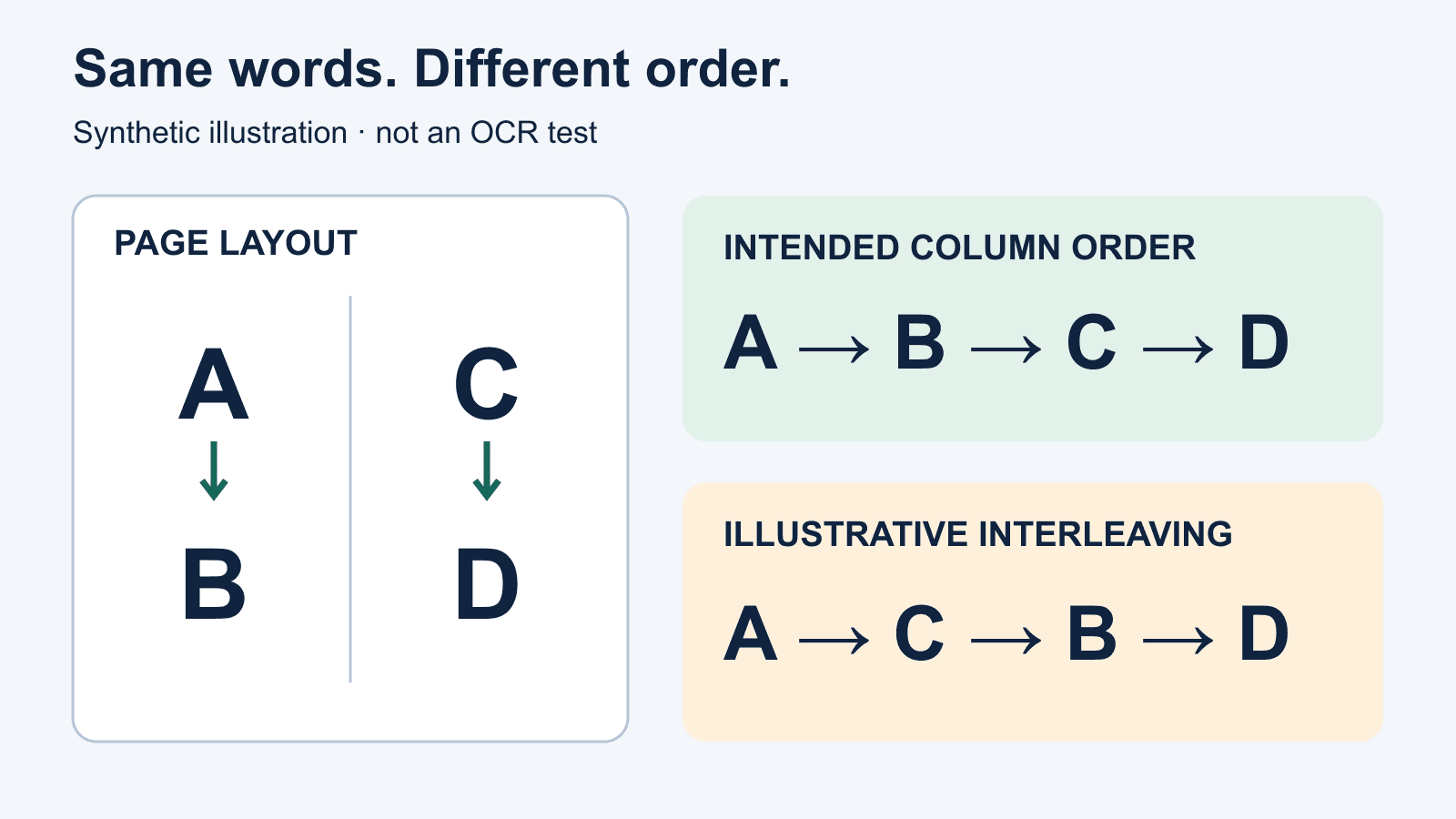
This is a synthetic illustration, not a customer document, OCR-engine output or performance test. Imagine a short instruction printed in two columns. The reader should finish the left column before starting the right.
Full text of the diagram: The left column contains A, “Open the folder,” followed by B, “Read the cover note.” The right column contains C, “Check the attachment,” followed by D, “Record any questions.” The intended column sequence is A → B → C → D: open the folder, read the cover note, check the attachment, then record any questions. The illustrative faulty sequence is A → C → B → D: open the folder, check the attachment, read the cover note, then record any questions. Every word remains present; the sequence changes.
Actual failures may mix individual lines rather than complete sentences. A sidebar can interrupt the main paragraph, or a footer can appear inside the copied passage. The useful evidence is the location where the output departs from the intended sequence.
Layout analysis is a separate concern from recognising individual characters. For example, Tesseract's documentation distinguishes automatic page segmentation from modes that assume a single column or block. This illustrates why layout assumptions matter; it does not identify Pexatech's software or prescribe a setting for your PDF.
Run a small, repeatable copying check
Use an authorised working copy in the application your team normally uses. The following is a suggested diagnostic exercise, not a software benchmark.
- Identify the passage. Record the filename, version and page, plus its first and last words. Note any nearby column, sidebar, caption or footer.
- Search a known word. Record whether it is found in that passage. Keep this result separate from the copying result.
- Copy the required passage. Paste it into a plain-text destination, where available, and compare its words and sequence with the image. This helps separate ordering from visual formatting; it does not repair the text.
- Try a smaller selection. Select just one paragraph or column, if the application permits it. Check whether neighbouring content still appears. A successful narrow selection can help with an occasional excerpt, but does not establish that the complete page is correct.
- Repeat the real task. Paste into the document or application staff actually use. Record the application versions, selection method and remaining problem.
For an issue report, write something concrete: “On page 4, selecting the left-column paragraph also inserts the first two lines of the right column after its second sentence.” Include the expected sequence and the observed output. Avoid silently rearranging the evidence before showing what failed.
Agree what the corrected output must do
If one short excerpt is needed, carefully selecting and checking it may be enough. If staff repeatedly reuse passages across many files, ask for an assessment of the required text output and layout handling. Do not assume that running the same OCR process again will resolve the problem.
A useful request is:
We need to copy the specified passages in their intended column order, without inserted sidebars or missing words. Please assess representative pages, identify any manual correction, and demonstrate the result in our agreed application. Keep source-page references and flag unresolved passages.
Agree how headings, notes and captions belong in the output. Ask whether the proposal covers a searchable PDF, a separate text export or another format. If the real goal is maintaining a whole document, the editable Word guide covers that different requirement.
Keep search, copying and accessibility checks separate
Search tests retrieval of particular text. Copying tests the selected passage in a particular workflow. Neither is a complete accessibility assessment.
W3C's PDF reading-order technique describes how improperly structured columns can affect assistive reading. Adobe also provides reading-order repair tools for tagged PDFs. These concern document structure; changing tags should not be presented as a guaranteed copy-and-paste fix in every application. Use the PDF accessibility guide when that is part of the requirement.
Pexatech's OCR service overview is a starting point for discussing the observed problem. Confirm optional OCR, text-output work and any separate remediation scope before proceeding. Recheck the agreed passages after changes, and record what remains unresolved; a successful sample does not prove every page in the collection behaves the same way.
Describe the copying problem
Tell us your document types, approximate volume and the text you need to reuse. Discuss whether OCR or a separately scoped output assessment suits your documents before sharing confidential samples.
Discuss Your OCR Requirements